 paredo
A clearer QuickBooks workspace
How to declutter your QuickBooks Online dashboard
Make Home a useful starting point: keep the information you check, reduce optional clutter, and preserve access to the actions you need.
Start with the information you actually use
To declutter your QuickBooks Online dashboard, first choose the figures and actions you want to see when you open Home. Then use the native customization controls before adding another tool.
Your useful starting view might be bank balances and unpaid invoices. Someone else may need expenses or a profit-and-loss summary. Keep the information that helps you decide where to go next; give occasional information less prominence.
Use QuickBooks’ built-in Home customization
Intuit’s Home customization guide describes these options:
- From Home, select Customize → Add or remove widgets.
- Choose the sections and widgets you want visible, then save.
- Use Customize to move widgets and resize those that support it, then save your arrangement.
Some sections cannot move, and resizing varies by widget. Available controls can differ by account and interface. Intuit also documents an eye control for the QuickBooks Loans entry in the Bank Account widget’s settings.
If Paredo is already enabled, choose Restore QBO layout before using native customization, reordering, or resizing. Finish and save those changes before re-enabling Paredo.
Choose a small starting view
Give each visible widget a job: checking something, spotting an item that needs attention, or opening a familiar task. If you cannot name its job in your routine, consider hiding it with the available native control.
After changing the arrangement, confirm the company, reporting dates, and balances you rely on. Fewer cards should not make it harder to understand which business or period you are viewing.
A display setting hides a widget; it is not a reason to disconnect an account or delete records. Keep layout choices separate from changes to your books.
What Paredo adds on supported Home views
Paredo offers visibility choices for supported promotional and optional Home elements, plus a more compact presentation of selected content. Its menu lets you reveal optional controls or switch the screen back to the native layout.
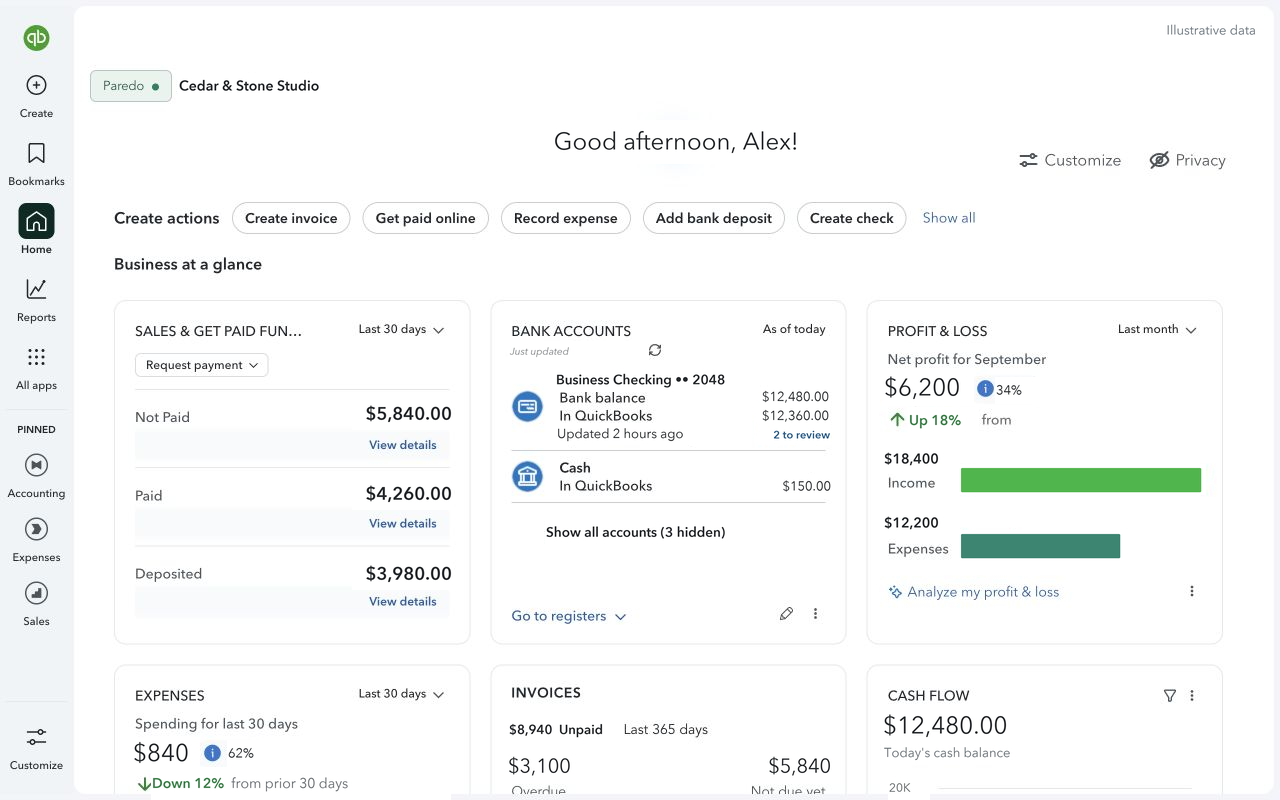
Use native customization if it already gives you the view you want. Paredo may help when recognized promotions, selected cards, or surrounding controls still make the screen feel crowded. It is not a replacement for QuickBooks’ widget editor.
Keep occasional controls within reach
A useful dashboard has room for your work and a way back to less frequent actions. Try revealing a control you normally use only occasionally. Check that menus open and charts remain readable at your usual browser width.
If the simplified view does not fit your screen or company, restore the QBO layout. Home coverage varies, and QuickBooks updates can affect compatibility. We have not established that one layout works better for everyone or saves a measured amount of time.
If the problem goes beyond Home
For banners and marketing interruptions, see how to reduce QuickBooks ads and pop-ups. For broader frustration, our guide to simplifying QuickBooks Online separates display clutter from navigation and accounting questions.
Paredo changes selected views; it does not change balances, categorize transactions, or fix bank connections. Its display preferences stay local to your Chrome profile. Read the privacy policy for the separate trial and subscription handling.
Native controls checked against Intuit’s linked documentation on October 28, 2026. The screenshot shows Paredo’s supported presentation, not a live test of every native customization option.