 paredo
A clearer QuickBooks workspace
How to reduce ads and pop-ups in QuickBooks Online
Promotions can take up space you want for bookkeeping. Start with the controls QuickBooks provides, then decide whether you need help with what remains.
Can you turn off all QuickBooks Online ads?
Intuit’s support response about ads and marketing pop-ups says there is no single setting that removes every in-product ad. You can adjust personalized-ad preferences, dismiss individual offers, and consider a display extension for supported promotions.
Start by identifying the interruption. A promotional card inside QuickBooks, a new browser window, and an accounting warning need different responses.
Start with Intuit’s marketing preferences
For eligible regular-user accounts, Intuit describes this path:
- Open Settings → Account and settings → Advanced → Marketing preferences.
- In your Intuit account, open Preferences → Personalized ads and disable the Intuit and third-party advertising options.
Intuit says changes may take up to 48 hours and this route is unavailable to Accountant-user logins. It reduces personalization; it does not remove every promotion. If your account differs, follow the linked Intuit guidance rather than assuming the controls are missing.
Dismiss an offer, but keep meaningful warnings
Use an offer’s close or decline control when available. Dismissing one campaign may not prevent a different offer appearing later.
Before hiding a message, read it. A payment failure, disconnected bank account, or unsaved-work warning needs attention. A quieter interface is useful only if you can still see information that affects your work.
Why a browser pop-up blocker may not help
A browser pop-up setting targets windows and redirects. A banner or card drawn inside the QuickBooks page is a different kind of interface element. Blocking new windows should not be expected to clear those cards.
If the clutter is mostly on Home, start with QuickBooks dashboard customization. Removing an optional widget is different from blocking an advertisement.
Where Paredo fits
Paredo is a paid Chrome extension with a free trial. It tucks away recognized promotions and selected secondary controls on supported QuickBooks Online screens. You can reveal optional controls or restore the native QBO layout.
It does not promise to remove every advertisement. Promotions rotate, interfaces differ, and QuickBooks updates can affect coverage. Important warnings and unrecognized dialogs remain available.
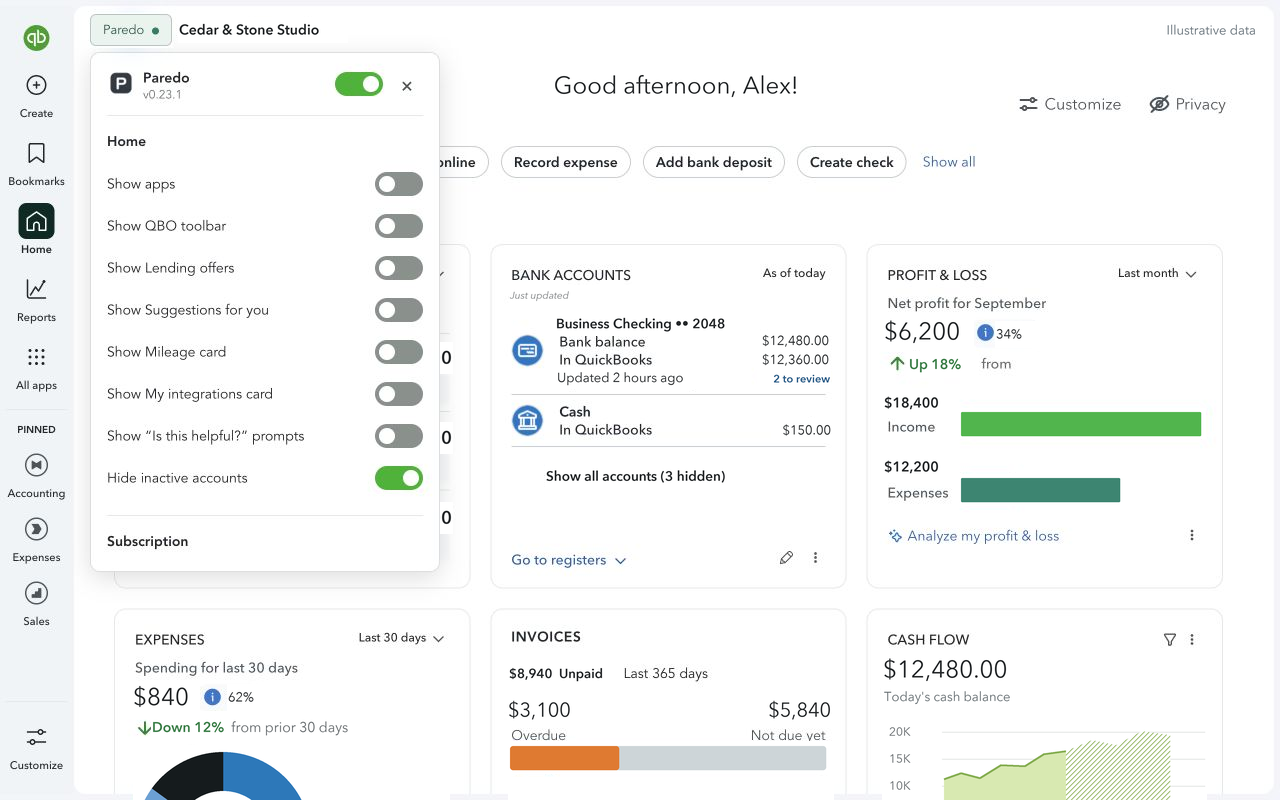
Check the result on a familiar screen
- Open a screen you regularly use and confirm the company and account.
- Compare it with Paredo enabled and with Restore QBO layout.
- Check that your normal actions, filters, and account context remain accessible.
- If something useful is missing, restore the layout and tell us which screen needs attention. Redact private details from screenshots.
Paredo adjusts presentation in your browser; it does not post, categorize, or edit accounting records. QuickBooks page content is not sent to Spring Harbor Studios or our billing providers. See our privacy policy for display storage and separate billing details.
Would another tool fit better?
If you also want navigation shortcuts or transaction tools, read our Paredo and RightTool comparison. There is meaningful overlap in interface enhancements; choose by the features you need rather than assuming one extension covers every problem.
Native settings checked against the linked Intuit support guidance on October 28, 2026. We have not independently tested that marketing-preferences path across account types.