 paredo
A clearer bank transactions view
How to customize QuickBooks Online Bank Transactions for a clearer view
Make room for the information you use when reviewing bank activity. Start with QuickBooks’ own display controls, then decide whether the surrounding clutter needs attention.
Can you customize the Bank Transactions screen?
Yes. In the current banking experience, QuickBooks provides table settings for choosing which columns appear. Paredo offers separate display changes on supported versions of the screen, including visibility options for account cards and the QBO toolbar.
Start with the native settings. If those give you the view you need, you may not need an extension. This guide focuses on presentation, not how to categorize or post transactions.
Choose your columns in QuickBooks
- Open Bank transactions in QuickBooks Online and confirm the company and selected account.
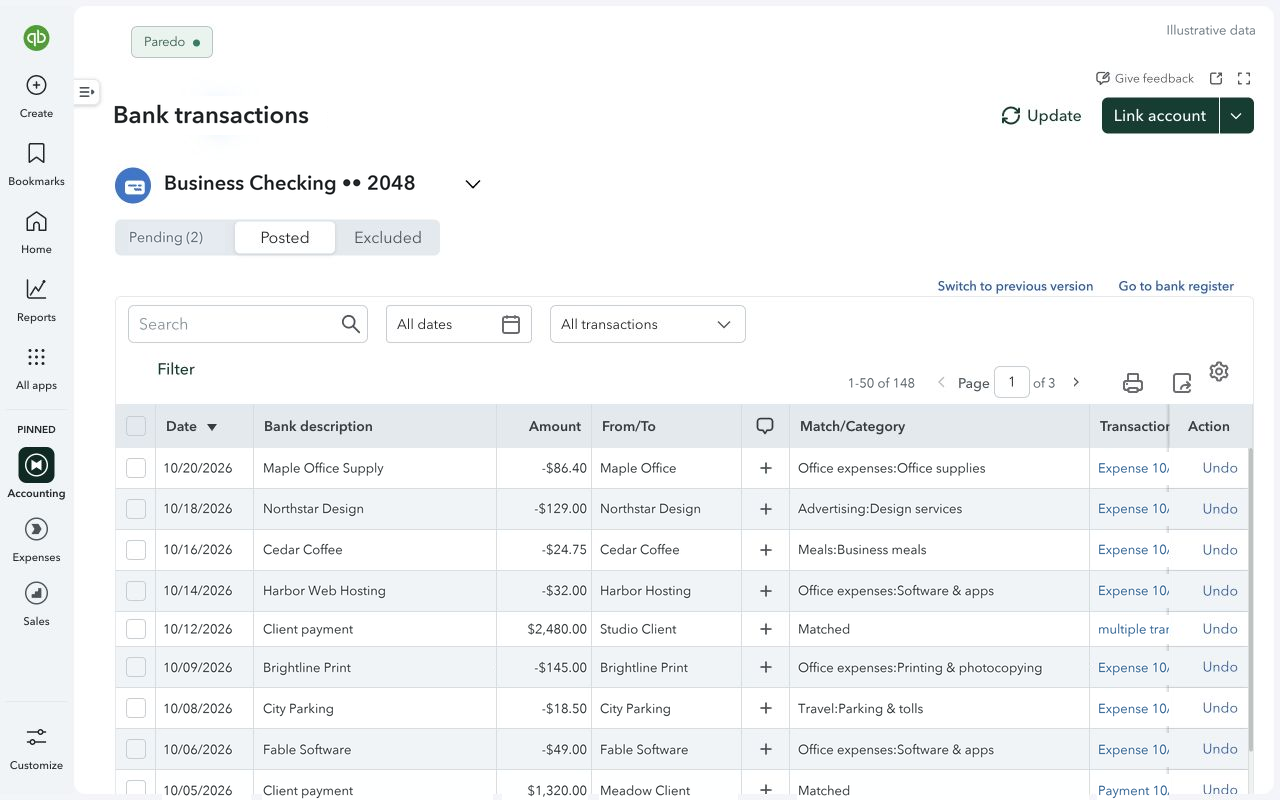
- Find the Settings icon directly above the transaction table. This is the table control, rather than the main company settings menu.
- Choose the available columns you want to show. Keep the information you regularly compare visible; remove optional columns you rarely need.
- Check the result at your usual window width. If a useful field is no longer visible, return to the table settings and show it again.
Intuit explains that some tracked fields can appear as table columns or remain available when you expand a transaction. See its banking-page guide, including “How do I customize the table?”.
Your available fields and controls may differ by QuickBooks account, region, and interface. If your screen differs, use the options it actually offers rather than expecting every example to be present.
Keep your account, tabs, and filters in view
A narrower table is only useful if you can still tell what you’re looking at. Before reviewing the list, check these three things:
- The company and account. Confirm the context before interpreting the rows. If you use an all-accounts view, remember that the list covers more than one account.
- The selected tab. Pending, Posted, and Excluded are different views. Some interfaces use labels such as For review or Categorized.
- The current search and filters. Check the date range and any active search before treating an empty result as an empty queue.
Keep the Action column and the controls you use accessible. Hiding interface clutter should not mean losing track of your work.
What Paredo changes around the table
Paredo is a paid Chrome extension with a free trial. On supported Bank Transactions screens, it compacts the surrounding layout and lets you tuck away account cards and the QBO toolbar while keeping the account picker and transaction tabs accessible.
In the Paredo menu on the banking screen:
- Show account cards brings back the account-card area when you want it.
- Show QBO toolbar reveals the native toolbar where that option is available.
- Restore QBO layout returns the screen to its native presentation. Use this before adjusting native settings if a control is tucked away.
Display choices are saved locally in your Chrome profile. Coverage varies by interface, and QuickBooks updates can affect compatibility. Paredo does not provide unrestricted column editing or replace QuickBooks’ table settings.
Check the view against your normal work
- Choose a familiar account and note the current tab, search, and filters.
- Compare Paredo’s view with the restored native layout at the same window width.
- Confirm you can reach the account picker, transaction tabs, filters, and native actions you rely on.
- Reveal optional controls when you need them. If a view is less useful, leave Paredo off for that screen and tell us what needs attention.
You do not need to create, post, categorize, exclude, or undo transactions to compare the layouts.
Common questions
Does hiding a column change a transaction?
Choosing a table column is a display adjustment. Paredo also changes presentation only; it does not post, categorize, or edit accounting records.
Does Paredo fix missing transactions or bank connections?
No. A display extension does not repair bank feeds or resolve accounting discrepancies. Restore the native layout to check whether a display change is involved, then use QuickBooks support for a banking or service problem.
Does Paredo send my transaction data elsewhere?
No QuickBooks page content is sent to Spring Harbor Studios or our billing providers. Page adjustments happen in your browser. Trial and subscription information is handled separately; see the privacy policy.
Native column guidance checked against Intuit documentation on October 29, 2026. The menu labels above were checked against Paredo’s current implementation. This is not a fresh live test across QuickBooks account types.